 Anil Computers 18/368, PREM KUTIR, UNIVERSITY ROAD, UDAIPUR - 313001RAJASTHAN, INDIA
 [email protected]@[email protected]
 09414234600, 7737447183
 Anil Computers 18/368, PREM KUTIR, UNIVERSITY ROAD, UDAIPUR - 313001RAJASTHAN, INDIA[email protected]@[email protected]09414234600, 7737447183

Attendance sheet
step-1 select all table
Home menu > format
colum width
choose any no.
step -2 पुरी sheet में जहां-जहां absent mark करने हैं वह करें
step -3 select table only 1-31 days ( row / column)
step - 4 Home > find & select > Replace > Replace with :p> Replace all
Note- absent को Heghtight करने के लिए conditional formatting > Highlight cell Rules > Equal to - 'A' choose colous.
step-5 present value निकलने के लिए
= countif (range of present or absent,"p")
step-6 Absent value
=countif (range of present or absent "A")
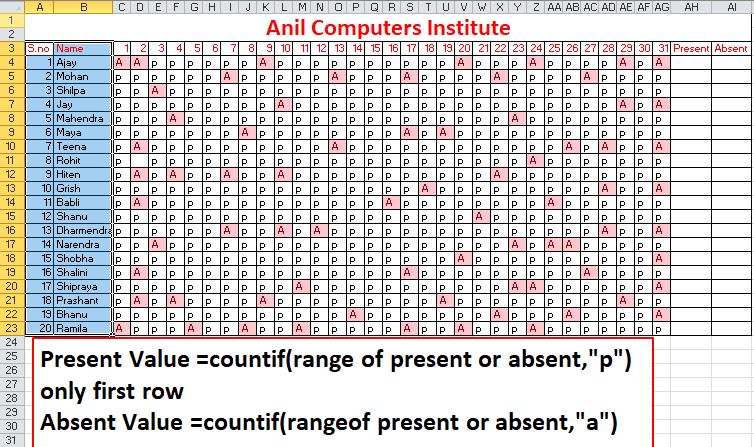
Advance Attendance sheet
इस Attendance से हम यह define कर सकते हैं कि यह Attendance Sheet किस Month के लिए है-
1. Date format के लिए
Home tab > format >format cell > custom >general हटा कर > dd press करना ok
Result - 01 आएगा
Formula bar मैं Year Change करना
Then drag number (date) horizontal
2. - Day format के लिए
= text (value, format text )
=TEXT(C3,"ddd")
Highlight Sunday Range
Day वाली range से select all table>Conditional formatting >New Rules> Use a formula to determine which cell to format> Format values where this formula is true:
= select day first cell = ''sun ''= $C$4
यह Cell Lock रहता है इसे Lock से Free करेंगे इसका Column Lock
से Free करेंगे
format >fill >choose color >ok>ok
Result - sun highlight हो जाता है