 Anil Computers 18/368, PREM KUTIR, UNIVERSITY ROAD, UDAIPUR - 313001RAJASTHAN, INDIA
 [email protected]@[email protected]
 09414234600, 7737447183
 Anil Computers 18/368, PREM KUTIR, UNIVERSITY ROAD, UDAIPUR - 313001RAJASTHAN, INDIA[email protected]@[email protected]09414234600, 7737447183

PHOTOSHOP
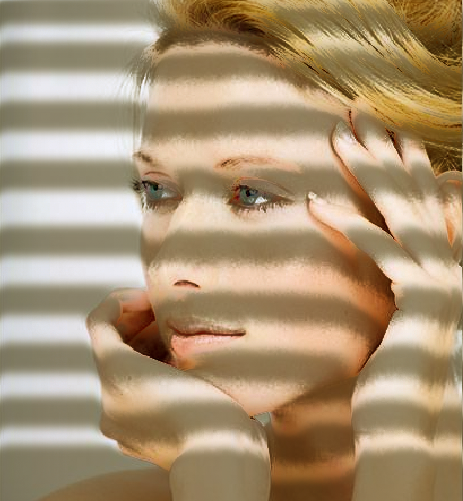
CAST LIGHT WINDOWS
("CAST LIGHT WINDOW " in photoshop simulates sunlight through windows. Techniques use selections, masks, and adjustment layers to create realistic light and shadow effects, adding depth and mood.
Adding cast light window effects in Photoshop is a powerful way to create atmosphere, mood, and visual storytelling in your images. This technique mimics sunlight streaming through windows, adding a sense of warmth and realism. At Anil Computers, Udaipur, we teach practical Photoshop techniques like this as part of our hands-on courses.
Step 1: Open and Duplicate Your Image
Insert the image
Duplicate the image
Navigate to Image > Mode > Lab Color
Click OK when prompted.
Windows - channels - lightness - Right click on lightness -
Duplicate channel - document - new document - Name( light ) - ok
Step 4: Adjust Levels
Ctrl+L - Increase the " Input level "
Step 5: Create Light Area
Use polygon lasso tool - Select the empty space
Shift+F5 ( To fill white color) - Ctrl+T ( adjust ) - ok
Step 6: Add Blur
Fliter - blur - gussian blur ( Increase it by 4.5 )
Step 7: Save and Close
Save the file ( in PHD form)
Close the duplicate file
Come on "ORIGINAL" File
Step 8: Change Mode Back to RGB
Image - Mode - RGB
Step 9: Create Window Shadow Lines
New layer - Rectangular selection ( make a rectangle box) - Fill Black color-
-Press V - Alt + Shift ( you can move the rectangle ) ( copy till the below)
Ctrl+D ( remove select )
Step 10: Apply Blur to Shadows
Fliter - Blur - Gussian blur ( increase it )
Step 11: Apply Displacement
Fliter - Distor - Displace
- Hortizonal scale - 0
-Vertical scale- 20
- Stretch to fit
- Repeat edge pixels
NOW.....,,,
Select the save photo
open it
Decrease the opacity ( around 50)
Step 13: Add Sunlight Color
New fill and adjustment - color balance -
- Properties - RED-( 10-15)in b\w
- YELLOW - (-34) ( to give sun effect )
You now have a beautiful sunlight through window effect that adds realism, depth, and emotion to your scene — perfect for creative or cinematic photography.
? AI Tools & Technology Credits
इस लेख को आसान, स्पष्ट और उपयोगी बनाने के लिए आधुनिक AI तकनीकों की सहायता ली गई है।
इन टूल्स की मदद से रिसर्च, कंटेंट लेखन, डिजाइन, SEO और वीडियो क्रिएशन तेज़, सटीक और प्रोफेशनल तरीके से किया गया है।
हम इन सभी AI प्लेटफॉर्म्स का आभार व्यक्त करते हैं जिन्होंने सीखने और सिखाने की प्रक्रिया को सरल और प्रभावी बनाया।
यदि आप भी ब्लॉग, स्टडी नोट्स, प्रोजेक्ट या डिजिटल कंटेंट बनाना चाहते हैं, तो इन टूल्स का उपयोग अवश्य करें:
? OpenAI ChatGPT – AI Content Writing & Ideas
? Google Gemini – Smart Research Assistant
? Canva – Graphics & Design Creation
? Google Flow – AI Video Creation Tool
? InVideo – AI Video Maker & Reels Creator
? Ubersuggest – SEO & Keyword Research Tool
https://neilpatel.com/ubersuggest
? Remove.bg – Background Remover for Images
? ElevenLabs – AI Voiceover Generator
? Microsoft Copilot – Documents & Office Productivity AI
✨ AI tools के साथ सीखें, तेज़ी से बढ़ें और अपने काम को प्रोफेशनल बनाएं।
— Team Anil Computers