 Anil Computers 18/368, PREM KUTIR, UNIVERSITY ROAD, UDAIPUR - 313001RAJASTHAN, INDIA
 [email protected]@[email protected]
 09414234600, 7737447183
 Anil Computers 18/368, PREM KUTIR, UNIVERSITY ROAD, UDAIPUR - 313001RAJASTHAN, INDIA[email protected]@[email protected]09414234600, 7737447183
COLLAGE
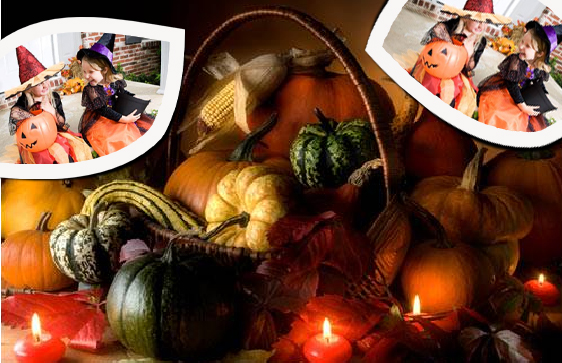
Photoshop is one of the most powerful tools for photo editing and designing. Creating a collage is a creative way to combine multiple photos into one beautiful layout. At Anil Computers, Udaipur, we teach you how to make professional collages in Photoshop.
परिचय (Introduction)
Photoshop में Warped Photo Collage बनाना एक क्रिएटिव तकनीक है, जिसमें फोटो को एडिट करके अलग-अलग शेप में डिजाइन किया जाता है और फिर उन्हें एक ही फाइल में कोलाज की तरह अरेंज किया जाता है। इस गाइड में हम सीखेंगे कि कैसे आप आसानी से Stroke, Warp, Blur और Grouping Technique का उपयोग करके प्रोफेशनल लेवल का फोटो कोलाज बना सकते हैं।
Step 1: फोटो ओपन और डुप्लिकेट करें
Open both Warped Photo Files A & B.
Duplicate the photo file so that you can edit without affecting the original.
Press Ctrl + New Layer to create a new layer.
Go to Image > Canvas Size > Relative → set size to 2” x 2”.
Select the photo layer → Layer Style > Stroke → set:
Size: 15
Position: Inside
Color: White
Press Ctrl + T → switch to Warp Mode (from Properties Bar) → adjust the photo shape as needed.
Step 3: इफेक्ट लगाना
Ctrl + J
On Photo Layer > D ( Black & White )
Alt + Shift + Backspace ( Black Color Fill )
Ctrl + T > Warp Mode > Extend Size
Filter > Blur > Gaussian Blur
Select Both Layer by Shift > Ctrl + G ( Group )
Drag the Group into File B.
Adjust the group placement using the Move Tool until it fits perfectly in your collage design.
By following these simple steps, you can create an attractive collage in Photoshop with effects like warp, stroke, blur, and grouping. Collages are widely used in album designing, posters, social media posts, and creative presentations.
? AI Tools & Technology Credits
इस लेख को आसान, स्पष्ट और उपयोगी बनाने के लिए आधुनिक AI तकनीकों की सहायता ली गई है।
इन टूल्स की मदद से रिसर्च, कंटेंट लेखन, डिजाइन, SEO और वीडियो क्रिएशन तेज़, सटीक और प्रोफेशनल तरीके से किया गया है।
हम इन सभी AI प्लेटफॉर्म्स का आभार व्यक्त करते हैं जिन्होंने सीखने और सिखाने की प्रक्रिया को सरल और प्रभावी बनाया।
यदि आप भी ब्लॉग, स्टडी नोट्स, प्रोजेक्ट या डिजिटल कंटेंट बनाना चाहते हैं, तो इन टूल्स का उपयोग अवश्य करें:
OpenAI ChatGPT – AI Content Writing & Ideas
Google Gemini – Smart Research Assistant
Canva – Graphics & Design Creation
Google Flow – AI Video Creation Tool
InVideo – AI Video Maker & Reels Creator
Ubersuggest – SEO & Keyword Research Tool
https://neilpatel.com/ubersuggest
Remove.bg – Background Remover for Images
ElevenLabs – AI Voiceover Generator
Microsoft Copilot – Documents & Office Productivity AI
✨ AI tools के साथ सीखें, तेज़ी से बढ़ें और अपने काम को प्रोफेशनल बनाएं।
— Team Anil Computers