Blog - Excel Efficiency Test Solution-39

Excel Efficiency Test Solution-39

Excel Efficiency Test Solution-39

LDC/ AI Efficiency Test Quiz


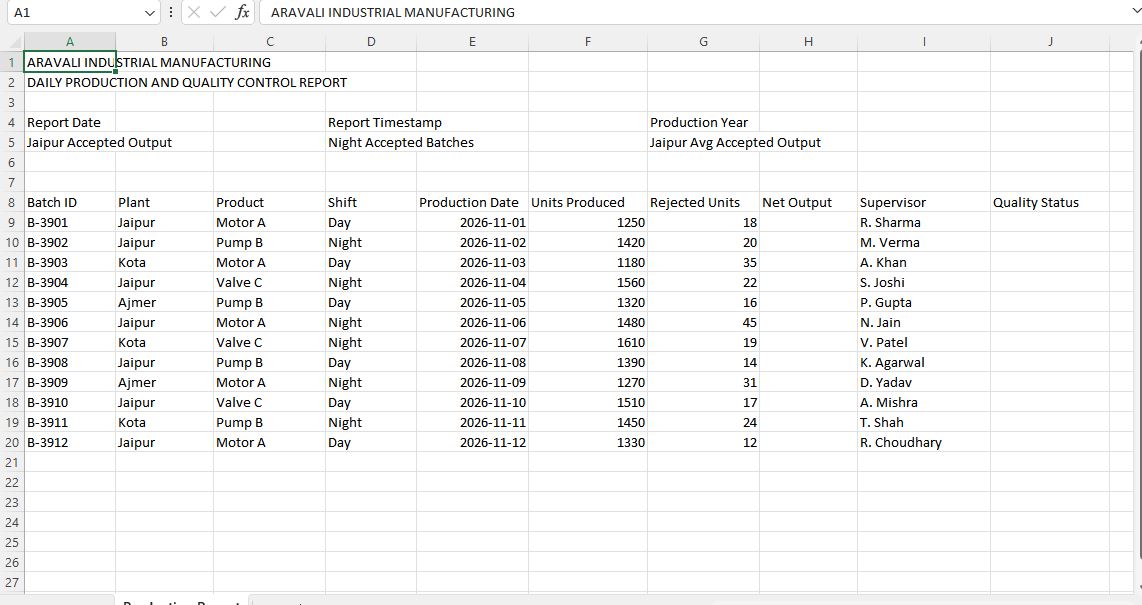
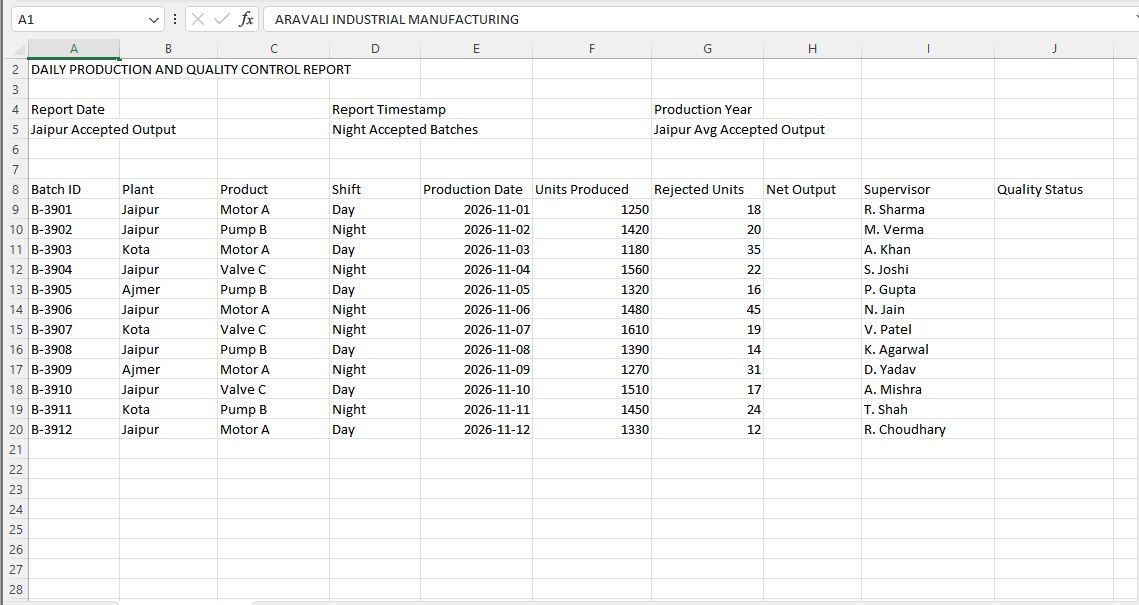
Excel Efficiency Test – Exercise 39


1. Merge and center the company title in cells A1:J1.

  • सबसे पहले A1:J1 Select करें।
  • Home Tab पर जाएँ।
  • Merge & Center पर क्लिक करें।


2. Merge the subtitle cells A2:J2.

  • A2:J2 Select करें।
  • Home Tab पर जाएँ।
  • Merge & Center पर क्लिक करें।


3. Apply bold formatting to the column headings in A8:J8.

  • A8:J8 Select करें।
  • Home Tab पर जाएँ।
  • Bold (B) पर क्लिक करें।


4. Center align all column headings in A8:J8.

  • A8:J8 Select करें।
  • Home Tab पर जाएँ।
  • Alignment में Center पर क्लिक करें।


5. Apply all borders to the production table A8:J20.

  • A8:J20 Select करें।
  • Home Tab पर जाएँ।
  • Borders के Dropdown पर क्लिक करें।
  • All Borders चुनें।


6. Display the current date in B4 using TODAY.

  • सेल B4 पर क्लिक करें।
  • Formula लगाएँ:

   =TODAY()

  •  Enter दबाएँ।


7. Display the current date and time in E4 using NOW.

  • सेल E4 पर क्लिक करें।
  • Formula लगाएँ:

    =NOW()

  •  Enter दबाएँ।


8. Extract the production year from the first production date in H4 using YEAR.

  • सेल H4 पर क्लिक करें।
  • Formula लगाएँ:

   =YEAR(E9)

  •  Enter दबाएँ।


9. Calculate the total accepted production output for the Jaipur plant in B5 using SUMIFS. Use Plant and Quality Status as criteria.

  • सेल B5 पर क्लिक करें।
  • Formula लगाएँ:

   =SUMIFS(H9:H20,B9:B20,"Jaipur",J9:J20,"Accepted")

  •   Enter दबाएँ।


10. Count the accepted Night shift batches in E5 using COUNTIFS.

  • सेल E5 पर क्लिक करें।
  • Formula लगाएँ:

   =COUNTIFS(D9:D20,"Night",J9:J20,"Accepted")

  •  Enter दबाएँ।


11. Calculate the average accepted production output for the Jaipur plant in H5 using AVERAGEIFS.

  • सेल H5 पर क्लिक करें।
  • Formula लगाएँ:

   =AVERAGEIFS(H9:H20,B9:B20,"Jaipur",J9:J20,"Accepted")

  •    Enter दबाएँ।


12. Calculate the total Net Output in J4 using SUM.

  • सेल J4 पर क्लिक करें।
  • Formula लगाएँ:

    =SUM(H9:H20)

  •   Enter दबाएँ।


13. Count the Accepted batches in J5 using COUNTIF.

  • सेल J5 पर क्लिक करें।
  • Formula लगाएँ:

   =COUNTIF(J9:J20,"Accepted")

  •  Enter दबाएँ।


14. Calculate Net Output in H9:H20 by subtracting Rejected Units from Units Produced. Also calculate Quality Status in J9:J20 using IF. Display Accepted when Rejected Units are not more than 2% of Units Produced; otherwise display Review.

Net Output निकालने के लिए:

  • सेल H9 पर क्लिक करें।
  • Formula लगाएँ:

    =F9-G9

  • Enter दबाएँ।
  • Formula को H20 तक Drag करें।

Quality Status निकालने के लिए:

  • सेल J9 पर क्लिक करें।
  • Formula लगाएँ:

    =IF(G9<=F9*2%,"Accepted","Review")

  • Enter दबाएँ।
  • Formula को J20 तक Drag करें।


15. Sort the complete production records in A9:J20 by Net Output in descending order and apply a filter to display only Accepted records.

Sorting करने के लिए:

  • A9:J20 Select करें।
  • Data Tab पर जाएँ।
  • Sort पर क्लिक करें।
  • Sort by में Net Output चुनें।
  • Order में Largest to Smallest चुनें।
  • OK पर क्लिक करें।

Filter लगाने के लिए:

  • A8:J20 Select करें।
  • Data Tab पर जाएँ।
  • Filter पर क्लिक करें।
  • Quality Status वाले Column J के Dropdown पर क्लिक करें।
  • Select All का Tick हटाएँ।
  • केवल Accepted पर Tick लगाएँ।
  • OK पर क्लिक करें।


सभी Formulas एक साथ याद करने के लिए

Question

Formula

6

=TODAY()

7

=NOW()

8

=YEAR(E9)

9

=SUMIFS(H9:H20,B9:B20,"Jaipur",J9:J20,"Accepted")

10

=COUNTIFS(D9:D20,"Night",J9:J20,"Accepted")

11

=AVERAGEIFS(H9:H20,B9:B20,"Jaipur",J9:J20,"Accepted")

12

=SUM(H9:H20)

13

=COUNTIF(J9:J20,"Accepted")

14 (Net Output)

=F9-G9

14 (Quality Status)

=IF(G9<=F9*2%,"Accepted","Review")

Excel Table के Column याद रखें

Column

Heading

A

Batch ID

B

Plant

C

Product

D

Shift

E

Production Date

F

Units Produced

G

Rejected Units

H

Net Output

I

Supervisor

J

Quality Status

महत्वपूर्ण: पहले Question 14 के दोनों Formula लगाएँ, ताकि Quality Status में Accepted और Review आ जाए। उसके बाद Question 9, 10, 11 और 13 के Formula का सही Result मिलेगा।


Thanks To Google

Thanks To ChatGPT

AI Content Writing & Research Tools

OpenAI ChatGPT – AI Content Writing & Ideas

https://chat.openai.com

Google Google Gemini – Smart Research Assistant

https://gemini.google.com

Design & Graphics Tools

Canva – Graphics & Design Creation

https://www.canva.com

Adobe Adobe Firefly – AI Image & Design Generation

https://firefly.adobe.com

Remove.bg – Background Remover for Images

https://remove.bg

Video Creation & Editing Tools

Google Google Flow – AI Video Creation Tool

https://labs.google/flow

InVideo – AI Video Maker & Reels Creator

https://invideo.io

Pictory – Blog to Video Conversion

https://pictory.ai

Synthesia – AI Avatar Video Creation

https://www.synthesia.io

Runway ML – AI Video Editing & Effects

https://runwayml.com

CapCut – Short Video Editing

https://www.capcut.com

Voice & Audio Tools

ElevenLabs – AI Voiceover Generator

https://elevenlabs.io

Descript – Audio/Video Editing with AI

https://www.descript.com

SEO & Marketing Tools

Ubersuggest – SEO & Keyword Research Tool

https://neilpatel.com/ubersuggest

Productivity & Document Tools

Microsoft Microsoft Copilot – Documents & Office Productivity AI

https://copilot.microsoft.com

iLovePDF – PDF Edit, Convert & Merge Tool

https://www.ilovepdf.com/

Popular AI Platforms for Learning

Midjourney

https://www.midjourney.com

DALL·E

https://openai.com/dall-e

Leonardo AI

https://leonardo.ai


✨ AI tools के साथ सीखें, तेज़ी से बढ़ें और अपने काम को प्रोफेशनल बनाएं।

— Team Anil Computers


1 1 hour ago
Advertisement
Advertisement