 Anil Computers 18/368, PREM KUTIR, UNIVERSITY ROAD, UDAIPUR - 313001RAJASTHAN, INDIA
 [email protected]@[email protected]
 09414234600, 7737447183
 Anil Computers 18/368, PREM KUTIR, UNIVERSITY ROAD, UDAIPUR - 313001RAJASTHAN, INDIA[email protected]@[email protected]09414234600, 7737447183
Microsoft Excel has many features that are used in day-to-day work. In this blog, we will learn in detail about Insert Sheet, Duplicate Copy, Rename Sheet, Sort, Filter, Home Menu, and Wrap Text.
Insert Sheet
There are two ways to insert a new sheet in Excel:
Click the “+” button near the last sheet tab.
A new sheet will be added automatically.
Right-click on any sheet tab.
Select Insert → Worksheet → OK.
A new sheet will be created.
Duplicate Copy
Press and hold the Ctrl key.
Drag the sheet tab to a new position.
A duplicate copy of the sheet will be created.
Rename A Sheet
There are two ways to rename any sheet:
Double-click on the sheet tab → type a new name.
Right-click → Rename → type a new name.
Position Change
Click and drag the sheet tab to a new position.
Release it where you want the sheet to appear.
Sort
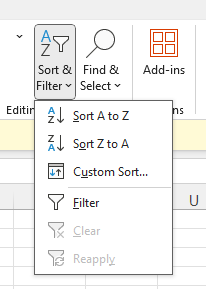
Go to Home → Sort & Filter → Sort A to Z / Sort Z to A.
It arranges data in Ascending (A–Z / Smallest to Largest) or Descending (Z–A / Largest to Smallest) order.
Custom Sort
Go to Home → Sort & Filter → Custom Sort.
When duplicate values exist, Custom Sort helps arrange data properly according to a specific column.
Filter
Go to Home → Sort & Filter → Filter.
It allows you to filter and display only the required values.
Shortcut: Ctrl + Shift + L
? Example: If you have a list of fruits and want to see only “Apple,” you can apply Filter and select Apple.
Home menu
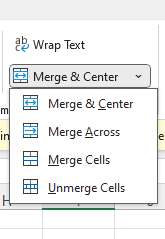
Merges multiple cells and aligns text at the center.
Merges cells horizontally, but not vertically.
Merges selected cells both horizontally and vertically.
Splits merged cells back into individual cells.
Wrap Text
Wrap Text is used to display long text on multiple lines within a single cell.
Select the cell(s).
Go to the Home tab → Wrap Text (Alignment group).
Excel will adjust the row height automatically.
Shortcut: Press Alt + H + W.
LINK: Insert Sheet, Duplicate Copy, Rename Sheet, Sort, Filter, Home Menu, Wrap Text in hindi
Thanks To Google
Thanks To ChatGPT