 Anil Computers 18/368, PREM KUTIR, UNIVERSITY ROAD, UDAIPUR - 313001RAJASTHAN, INDIA
 [email protected]@[email protected]
 09414234600, 7737447183
 Anil Computers 18/368, PREM KUTIR, UNIVERSITY ROAD, UDAIPUR - 313001RAJASTHAN, INDIA[email protected]@[email protected]09414234600, 7737447183
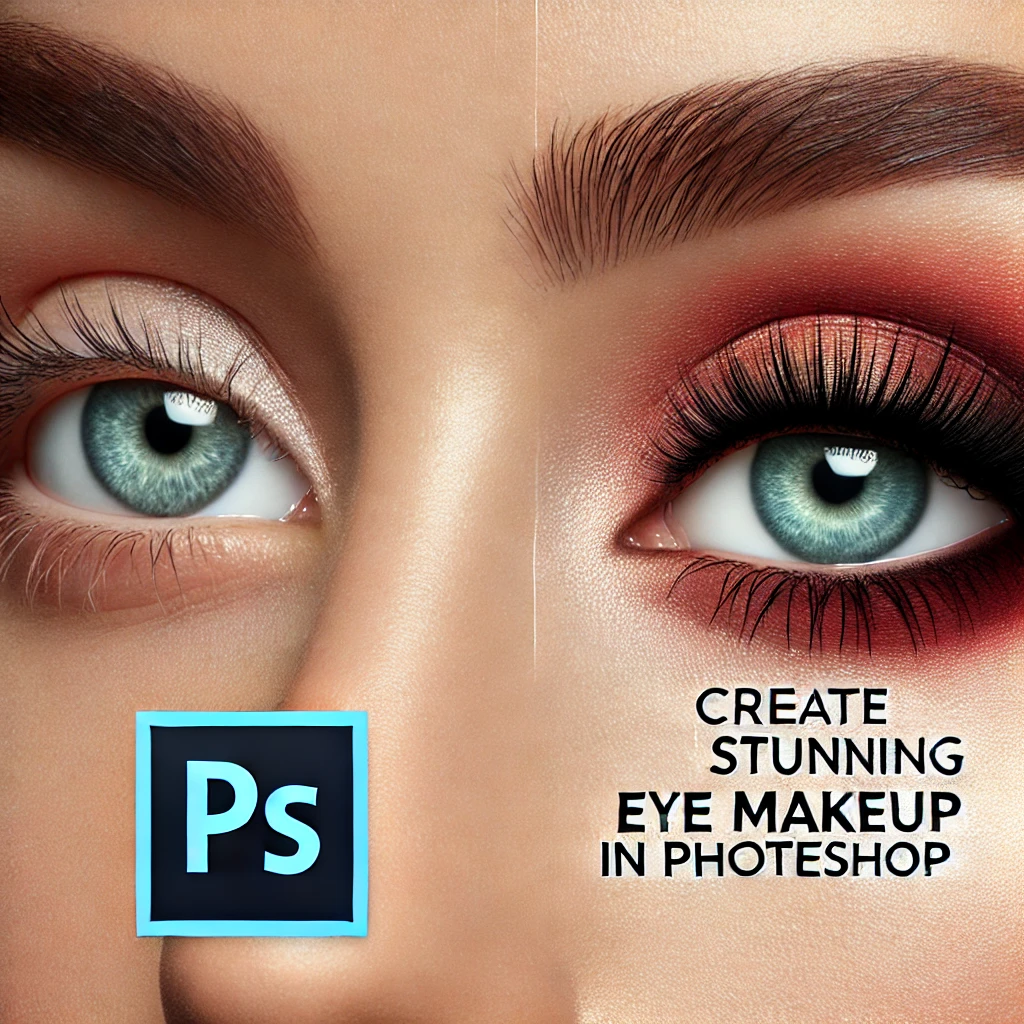
The eyes are the most expressive part of any portrait. In Photoshop, we can easily enhance and highlight eyes to make photos look more attractive and professional. This tutorial explains how to use the brush tool, feather selection, and sharpen filter to improve eye details step by step.
Step 1: Prepare the Image
Image Duplicate
New Layer
Step 2: Add Eye Colour
Eye Dropper > Select Lower Eye Colour
Brush tool > आँखो के चारों तरफ Move करना
Blend Mode > Soft Light
Eraser tool > for removeing extra effect ( if needed )
Step 3: Sharpen the Eyeball
select Photo Layer
Polygon Lasso Tool > select Eye Ball
Right Click > Feather : 2
Ctrl + J ( duplicate )
Filter >Sharpen > Sharpen
Opacity Decrease acc. to you
After following these steps, the eyes will look brighter, sharper, and more expressive, enhancing the overall portrait.
The Eye Enhancement Effect in Photoshop is an important technique for portrait retouching, fashion photography, and digital photo editing. At Anil Computers, Udaipur, students learn such creative Photoshop methods to improve photo editing skills and prepare for professional graphic designing projects.
? AI Tools & Technology Credits
इस लेख को आसान, स्पष्ट और उपयोगी बनाने के लिए आधुनिक AI तकनीकों की सहायता ली गई है।
इन टूल्स की मदद से रिसर्च, कंटेंट लेखन, डिजाइन, SEO और वीडियो क्रिएशन तेज़, सटीक और प्रोफेशनल तरीके से किया गया है।
हम इन सभी AI प्लेटफॉर्म्स का आभार व्यक्त करते हैं जिन्होंने सीखने और सिखाने की प्रक्रिया को सरल और प्रभावी बनाया।
यदि आप भी ब्लॉग, स्टडी नोट्स, प्रोजेक्ट या डिजिटल कंटेंट बनाना चाहते हैं, तो इन टूल्स का उपयोग अवश्य करें:
? OpenAI ChatGPT – AI Content Writing & Ideas
? Google Gemini – Smart Research Assistant
? Canva – Graphics & Design Creation
? Google Flow – AI Video Creation Tool
? InVideo – AI Video Maker & Reels Creator
? Ubersuggest – SEO & Keyword Research Tool
https://neilpatel.com/ubersuggest
? Remove.bg – Background Remover for Images
? ElevenLabs – AI Voiceover Generator
? Microsoft Copilot – Documents & Office Productivity AI
✨ AI tools के साथ सीखें, तेज़ी से बढ़ें और अपने काम को प्रोफेशनल बनाएं।
— Team Anil Computers