 Anil Computers 18/368, PREM KUTIR, UNIVERSITY ROAD, UDAIPUR - 313001RAJASTHAN, INDIA
 [email protected]@[email protected]
 09414234600, 7737447183
 Anil Computers 18/368, PREM KUTIR, UNIVERSITY ROAD, UDAIPUR - 313001RAJASTHAN, INDIA[email protected]@[email protected]09414234600, 7737447183
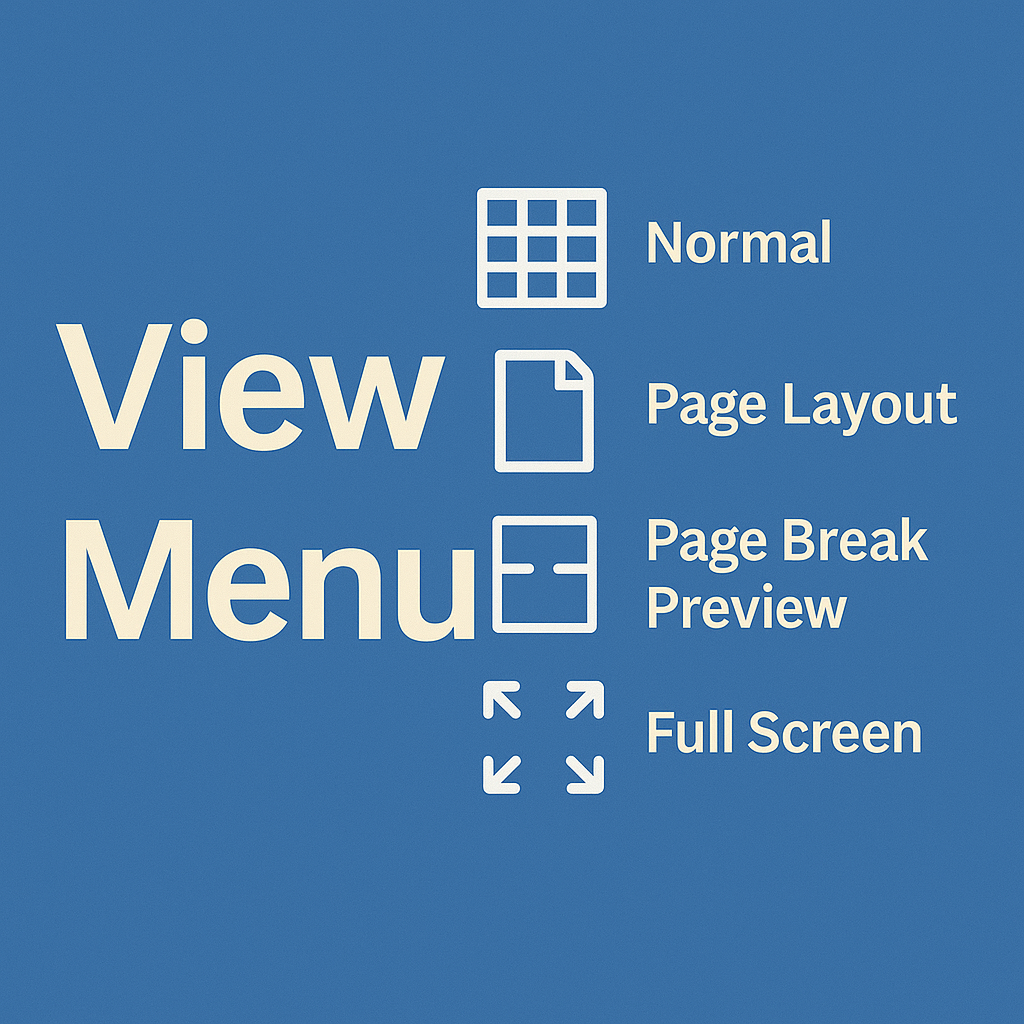
In Microsoft Excel, the View menu is used to change how a workbook is displayed, manage multiple windows, freeze rows/columns, adjust page layout, and prepare sheets for printing. In this blog, we will explore each option under the View Menu in detail.
View Menu
Creates a duplicate copy of the workbook in a new window.
Arranges multiple workbooks on the same screen for easy comparison.
Splits the workbook into multiple panes for easier navigation and editing.
Temporarily hides the current workbook window.
Displays a workbook that was hidden using the Hide option.
Allows switching between multiple open workbooks.
Freeze Panes
Freeze Panes is used to lock specific rows or columns so that they remain visible while scrolling.
Freeze Panes—Freezes both rows above and columns to the left of the selected cell.
Freeze Top Row—Freezes only the top row.
Freeze First Column – Freezes only the first column.
Unfreeze Panes—Removes all frozen rows and columns.
Page Layout
Displays the worksheet in page format.
Normal View—Displays the worksheet in its regular format.
Page set up
Margins—Sets extra spacing on the top, bottom, left, and right of the page.
Orientation—Sets page direction as vertical (portrait) or horizontal (landscape).
Size – Selects page size (e.g., A4, Letter).
Print Area—Defines the specific area of the sheet to print.
Breaks—Inserts or removes page breaks.
Background—Adds an image as the sheet background.
Print Titles –
Row to Repeat at Top – Prints a specific row at the top of every page.
Columns to Repeat at Left—Prints a specific column on the left of every page.
Page Order—Decides the order of printing:
(A) Down, then Over
(B) Over, then Down
Scale to Fit
Used to increase or decrease row/column size so that all data fits within a page.
Sheet option
Gridlines – View and print gridlines on the worksheet.
Headings – View and print row and column headings.
Note: Gridlines print across the entire page. If you want borders only for your data, use the Border option instead.
Cell Styles
Apply different built-in styles to cells for better formatting and presentation.
Thanks to ChatGPT
Thanks To Google