 Anil Computers 18/368, PREM KUTIR, UNIVERSITY ROAD, UDAIPUR - 313001RAJASTHAN, INDIA
 [email protected]@[email protected]
 09414234600, 7737447183
 Anil Computers 18/368, PREM KUTIR, UNIVERSITY ROAD, UDAIPUR - 313001RAJASTHAN, INDIA[email protected]@[email protected]09414234600, 7737447183
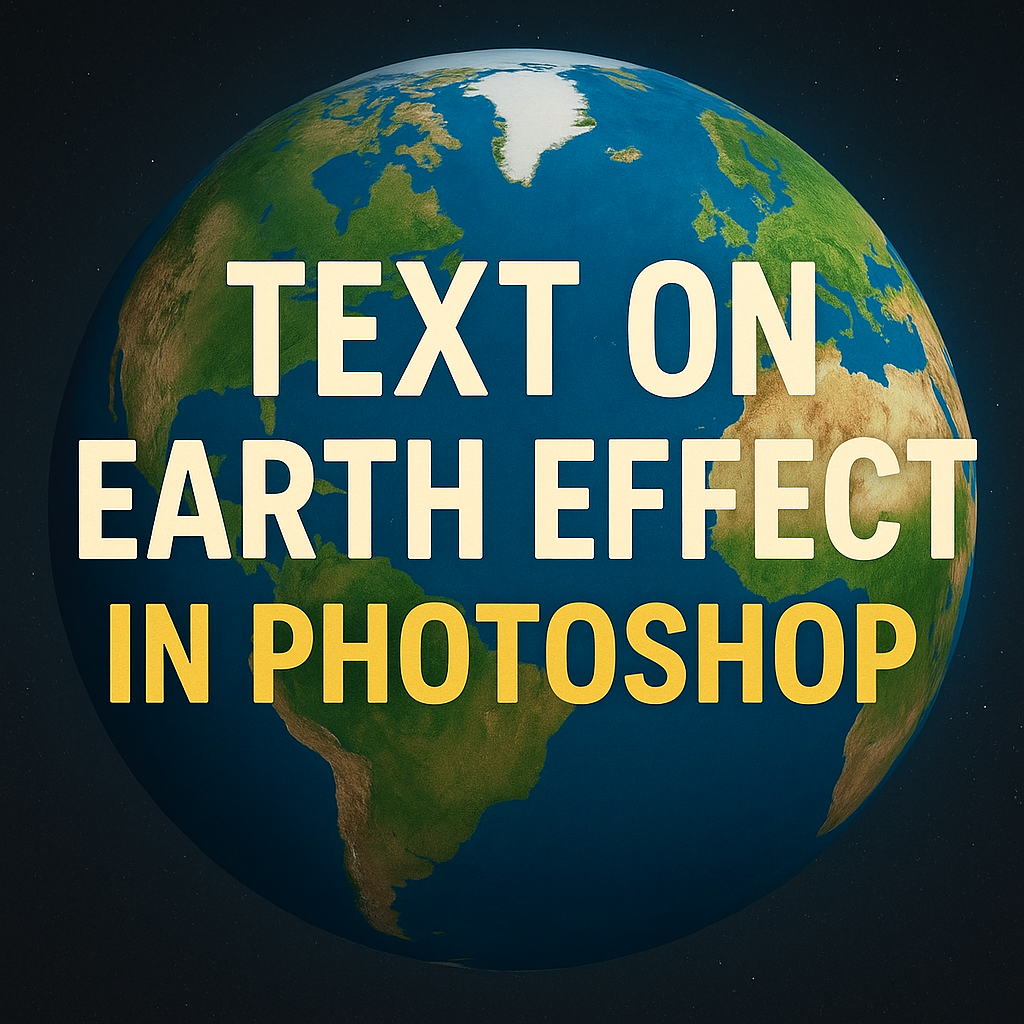
Text on Earth
Photoshop offers countless creative text effects that can bring your designs to life. One of the most exciting is the Text on Earth Effect, where text wraps around or appears on a globe-like surface, giving a 3D realistic design look.
Photoshop में आप अनगिनत क्रिएटिव टेक्स्ट इफेक्ट्स बना सकते हैं। इनमें से सबसे आकर्षक और प्रोफेशनल इफेक्ट है Text on Earth Effect, जिसमें टेक्स्ट ऐसे दिखता है मानो वह ग्लोब (पृथ्वी) पर लिपटा हुआ हो। यह एक 3D realistic design look देता है और पोस्टर, बैनर, डिजिटल आर्ट या शैक्षिक प्रोजेक्ट्स के लिए बेहद उपयोगी है।
इस ब्लॉग में Anil Computers, Udaipur आपको स्टेप बाय स्टेप बताएगा कि Photoshop में Text on Earth Effect कैसे बनाया जाता है।
Text Effect
1. Duplicate File बनाएं
Duplicate File
2. Earth के लिए Path बनाना
Window > Paths
Select Earth Using Lasso Tool / Elliptical Tool
Paths > Make Work Path
3. Text Tool से टेक्स्ट लिखें
Select Text Tool > Write Text (Arial /18 Pt)
Text Tool > Type Text > Anil Computer Class , Udaipur
4. Text को Expand या Contract करें
( Alt-right Allow > Expand Text )
( Alt + Left Arrow > Contract Text )
Enter
5. Transform करें
Ctrl + T
Ctrl + Alt > Perspective Transform
6. Inner Part Remove करें
Remove Inner Part From Eraser
Ctrl + D ( Remove Selection )
7. Layer Style लगाएँ
Layer Style > Gradient Overlay
Blend Mode > Vivid Light
8. Grid Lines हटाएँ
Ctrl + H ( Remove Grid Lines )
अब आपका टेक्स्ट ऐसा दिखेगा जैसे वह ग्लोब (Earth) पर लिपटा हुआ हो। यह एक 3D रियलिस्टिक डिजाइन इफेक्ट देगा, जो पोस्टर, बैनर, प्रेजेंटेशन और डिजिटल आर्ट के लिए बेहतरीन है।
Photoshop का Text on Earth Effect सीखकर आप अपनी डिज़ाइनिंग को नया और प्रोफेशनल टच दे सकते हैं। इसमें हमने सीखा कि कैसे Paths, Text Tool, Gradient Overlay और Perspective Transform की मदद से टेक्स्ट को ग्लोब पर 3D जैसा बनाया जाता है।
Anil Computers, Udaipur में छात्रों को ऐसे ही एडवांस Photoshop इफेक्ट्स और प्रोफेशनल डिजाइनिंग सिखाई जाती है।
? AI Tools & Technology Credits
इस लेख को आसान, स्पष्ट और उपयोगी बनाने के लिए आधुनिक AI तकनीकों की सहायता ली गई है।
इन टूल्स की मदद से रिसर्च, कंटेंट लेखन, डिजाइन, SEO और वीडियो क्रिएशन तेज़, सटीक और प्रोफेशनल तरीके से किया गया है।
हम इन सभी AI प्लेटफॉर्म्स का आभार व्यक्त करते हैं जिन्होंने सीखने और सिखाने की प्रक्रिया को सरल और प्रभावी बनाया।
यदि आप भी ब्लॉग, स्टडी नोट्स, प्रोजेक्ट या डिजिटल कंटेंट बनाना चाहते हैं, तो इन टूल्स का उपयोग अवश्य करें:
? OpenAI ChatGPT – AI Content Writing & Ideas
? Google Gemini – Smart Research Assistant
? Canva – Graphics & Design Creation
? Google Flow – AI Video Creation Tool
? InVideo – AI Video Maker & Reels Creator
? Ubersuggest – SEO & Keyword Research Tool
https://neilpatel.com/ubersuggest
? Remove.bg – Background Remover for Images
? ElevenLabs – AI Voiceover Generator
? Microsoft Copilot – Documents & Office Productivity AI
✨ AI tools के साथ सीखें, तेज़ी से बढ़ें और अपने काम को प्रोफेशनल बनाएं।
— Team Anil Computers