 Anil Computers 18/368, PREM KUTIR, UNIVERSITY ROAD, UDAIPUR - 313001RAJASTHAN, INDIA
 [email protected]@[email protected]
 09414234600, 7737447183
 Anil Computers 18/368, PREM KUTIR, UNIVERSITY ROAD, UDAIPUR - 313001RAJASTHAN, INDIA[email protected]@[email protected]09414234600, 7737447183
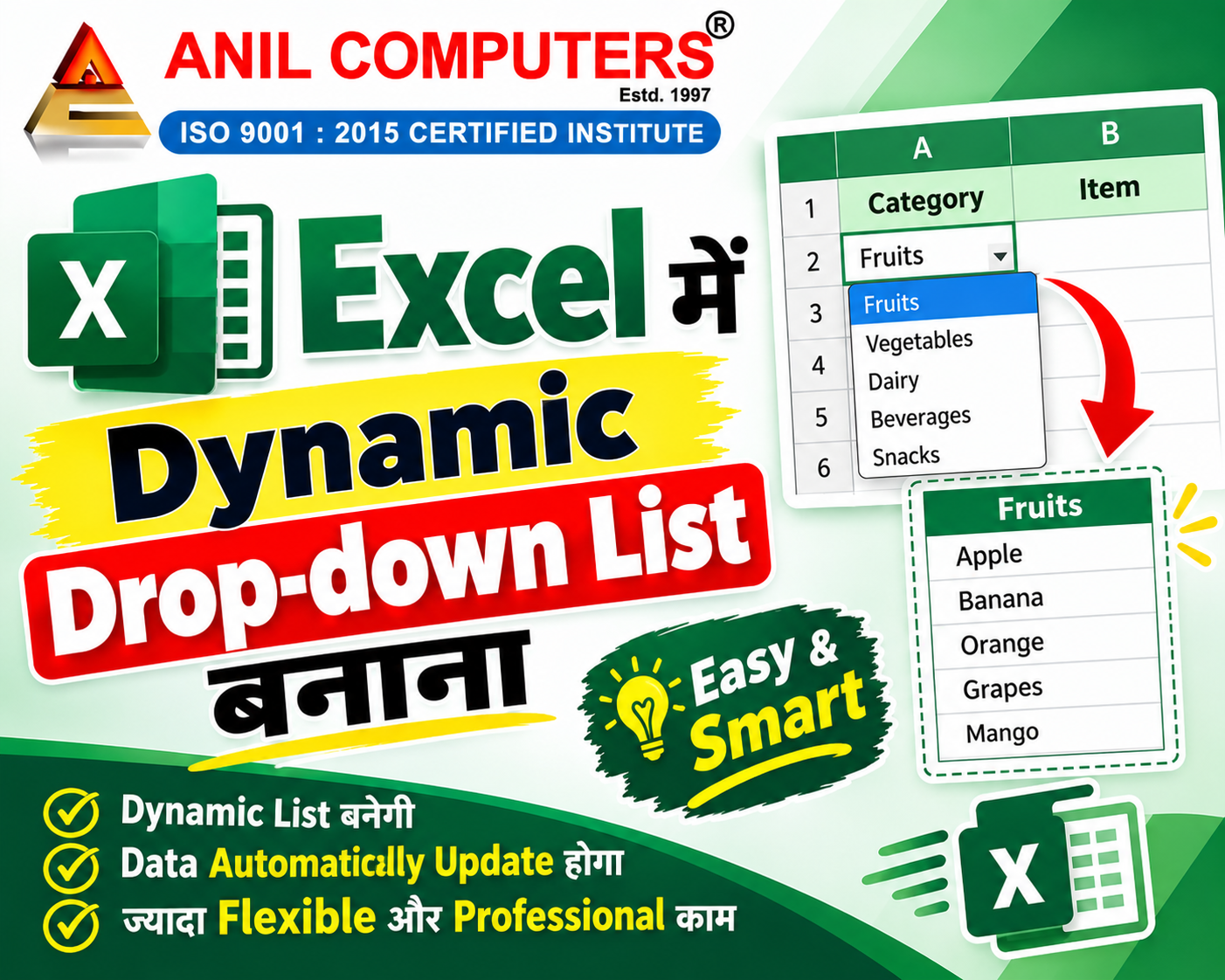
Excel में Dynamic Drop-down List बनाना
Dynamic Drop-down List ऐसी Drop-down List होती है जिसमें source list में नया item जोड़ने पर वह option automatically Drop-down में शामिल हो जाता है। बार-बार Data Validation की range बदलने की जरूरत नहीं पड़ती।
Example
मान लीजिए आपके पास Course की list है:
|
A |
|
Course |
|
Excel |
|
Tally Prime |
|
MS Office |
|
Digital Marketing |
और B2 में Drop-down List बनाई गई है।
आज Drop-down में ये options हैं:
Excel, Tally Prime, MS Office, Digital Marketing
अब अगर A6 में नया course:
Graphic Design
add करते हैं, तो Dynamic Drop-down होने पर Graphic Design भी automatically Drop-down में दिखाई देगा।
⭐ सबसे आसान तरीका: Excel Table
यह तरीका students को सिखाने के लिए सबसे आसान और practical है।
Step 1: Course List बनाएं
|
A |
|
Course |
|
Excel |
|
Tally Prime |
|
MS Office |
|
Digital Marketing |
Step 2: List को Table बनाएं
1. Course list में किसी भी cell पर click करें।
2. Ctrl + T दबाएँ।
3. My table has headers को tick करें।
4. OK करें।
अब आपकी Course List एक Excel Table बन गई।
Step 3: Drop-down List बनाएं
1. जिस cell में Drop-down चाहिए उसे select करें।
2. Data → Data Validation पर जाएँ।
3. Allow → List चुनें।
4. Source में Table के Course column को select करें।
5. OK करें।
अब जब Table के नीचे नया Course add करेंगे, तो source list automatically expand हो जाएगी।
? Practical Example
पहले:
Excel | Tally Prime | MS Office | Digital Marketing
फिर Table में नया Course add करें:
Graphic Design
अब Drop-down खोलने पर:
Excel | Tally Prime | MS Office | Digital Marketing | Graphic Design
दिखेगा। ✅
? Dynamic Drop-down का फायदा
Important Excel Video & Blog Link :
Excel Tricks
Thanks To Google
Thanks To ChatGPT
AI Content Writing & Research Tools
OpenAI ChatGPT – AI Content Writing & Ideas
Google Google Gemini – Smart Research Assistant
Design & Graphics Tools
Canva – Graphics & Design Creation
Adobe Adobe Firefly – AI Image & Design Generation
Remove.bg – Background Remover for Images
Video Creation & Editing Tools
Google Google Flow – AI Video Creation Tool
InVideo – AI Video Maker & Reels Creator
Pictory – Blog to Video Conversion
Synthesia – AI Avatar Video Creation
Runway ML – AI Video Editing & Effects
CapCut – Short Video Editing
Voice & Audio Tools
ElevenLabs – AI Voiceover Generator
Descript – Audio/Video Editing with AI
SEO & Marketing Tools
Ubersuggest – SEO & Keyword Research Tool
https://neilpatel.com/ubersuggest
Productivity & Document Tools
Microsoft Microsoft Copilot – Documents & Office Productivity AI
iLovePDF – PDF Edit, Convert & Merge Tool
Popular AI Platforms for Learning
Midjourney
DALL·E
Leonardo AI
✨ AI tools के साथ सीखें, तेज़ी से बढ़ें और अपने काम को प्रोफेशनल बनाएं।
— Team Anil Computers