 Anil Computers 18/368, PREM KUTIR, UNIVERSITY ROAD, UDAIPUR - 313001RAJASTHAN, INDIA
 [email protected]@[email protected]
 09414234600, 7737447183
 Anil Computers 18/368, PREM KUTIR, UNIVERSITY ROAD, UDAIPUR - 313001RAJASTHAN, INDIA[email protected]@[email protected]09414234600, 7737447183
Microsoft Word offers powerful tools under the View Menu and Review Menu that make it easier to read, edit, review, and collaborate on documents. In this blog, we’ll explore both menus in detail.
The View menu allows you to switch between different ways of looking at your document. It contains multiple groups with specific features.
Read Mode
Best for distraction-free reading.
Hides the ribbon and provides a clean, book-style layout.
Editing is restricted.
Print Layout
The default view in MS Word.
Shows how the document will look when printed.
Displays margins, headers, footers, and page breaks.
Web Layout
Displays the document as a web page.
Useful for creating online content.
Outline View
Shows the structure of the document using headings.
Allows collapsing or expanding sections.
Ideal for long reports, books, or research papers.
Draft View
Displays plain text without headers, footers, or images.
Useful for quick editing and reviewing.
Focus Mode → Hides toolbars and distractions, leaving only text.
Immersive Reader → Improves readability with tools like:
Column Width
Page Color
Line Focus
Text Spacing
Syllables
Read Aloud (Text-to-Speech)
Introduced in Word 2019:
Scrolls the document from top to bottom.
Displays pages next to each other like a book.
Works best in Read Mode or when zoomed out.
Enables or disables useful layout tools:
Displays horizontal and vertical rulers to align text, tables, and graphics.
Shows gridlines across the page, useful for layout and alignment.
Opens a sidebar to:
Browse headings
View pages as thumbnails
Search and jump through content quickly
Manage the zoom level of your document window:
Zoom: Opens a dialog box for custom zoom settings.
100%: Resets zoom to the default size.
One Page: Fits one page to the screen.
Multiple Pages: Displays more than one page side by side.
Page Width: Fits the width of the page to your screen.
Work with multiple windows or split views:
Opens the same document in a new window for multitasking.
Arranges all open Word documents side by side.
Splits one document into two scrollable panes.
View two documents together for easy comparison.
Scrolls both documents together (used with “View Side by Side”).
Resets the split or compared windows to their original layout.
Toggle between open documents easily.
This section helps you catch spelling, grammar, and language errors:
Checks for spelling and grammar mistakes.
Offers suggestions and corrections.
Helps you find synonyms for any word to improve vocabulary.
Shows the number of words, characters, paragraphs, and pages in the document.
Reads the document out loud.
Useful for proofreading and for visually impaired users.
Includes the Dictate feature.
Allows users to speak into the microphone, and Word will convert speech to text.
Translates selected text or the whole document into different languages.
Uses Microsoft Translator.
Set the proofing language.
Turn on/off language-specific spell check.
Add comments to any part of the document—ideal for feedback and teamwork.
Remove individual comments or all comments at once.
Navigate through comments easily using these buttons.
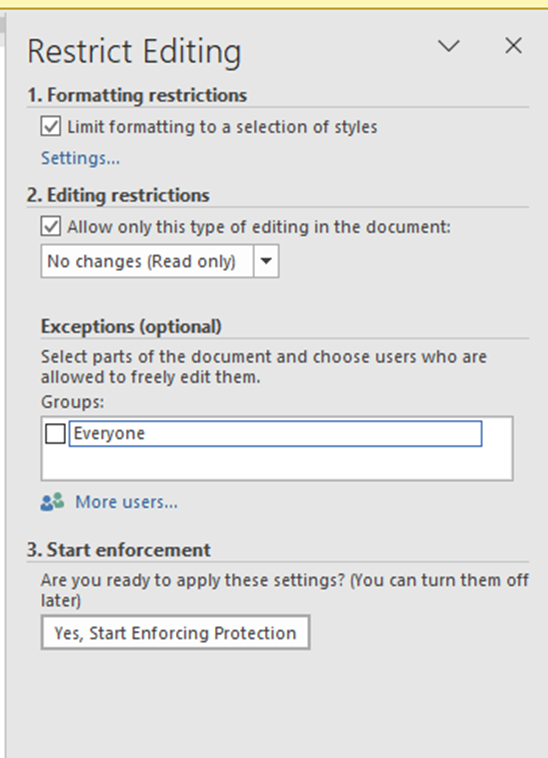
Restrict
To restrict the formatting & editing of the text in document
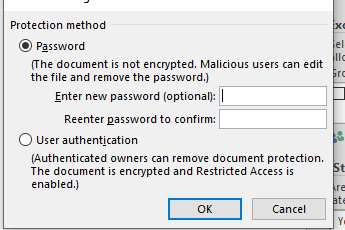
Review menu < Click : formatting & editing < Select options 1 & and click <
yes, Start enforcing protection <Enter Password 2 times <OK
Special Thanks to Google Tools—Google Search, Google Drive, Google Docs, Google Analytics, Google Ads, YouTube, Gmail, Android, ChatGPT by OpenAI, Grammarly, Canva, DALL·E, SurferSEO, Google, Deep seek
View Menu & Review Menu Blog In hindi
Thanks to ChatGPT
Thanks To Google