 Anil Computers 18/368, PREM KUTIR, UNIVERSITY ROAD, UDAIPUR - 313001RAJASTHAN, INDIA
 [email protected]@[email protected]
 09414234600, 7737447183
 Anil Computers 18/368, PREM KUTIR, UNIVERSITY ROAD, UDAIPUR - 313001RAJASTHAN, INDIA[email protected]@[email protected]09414234600, 7737447183
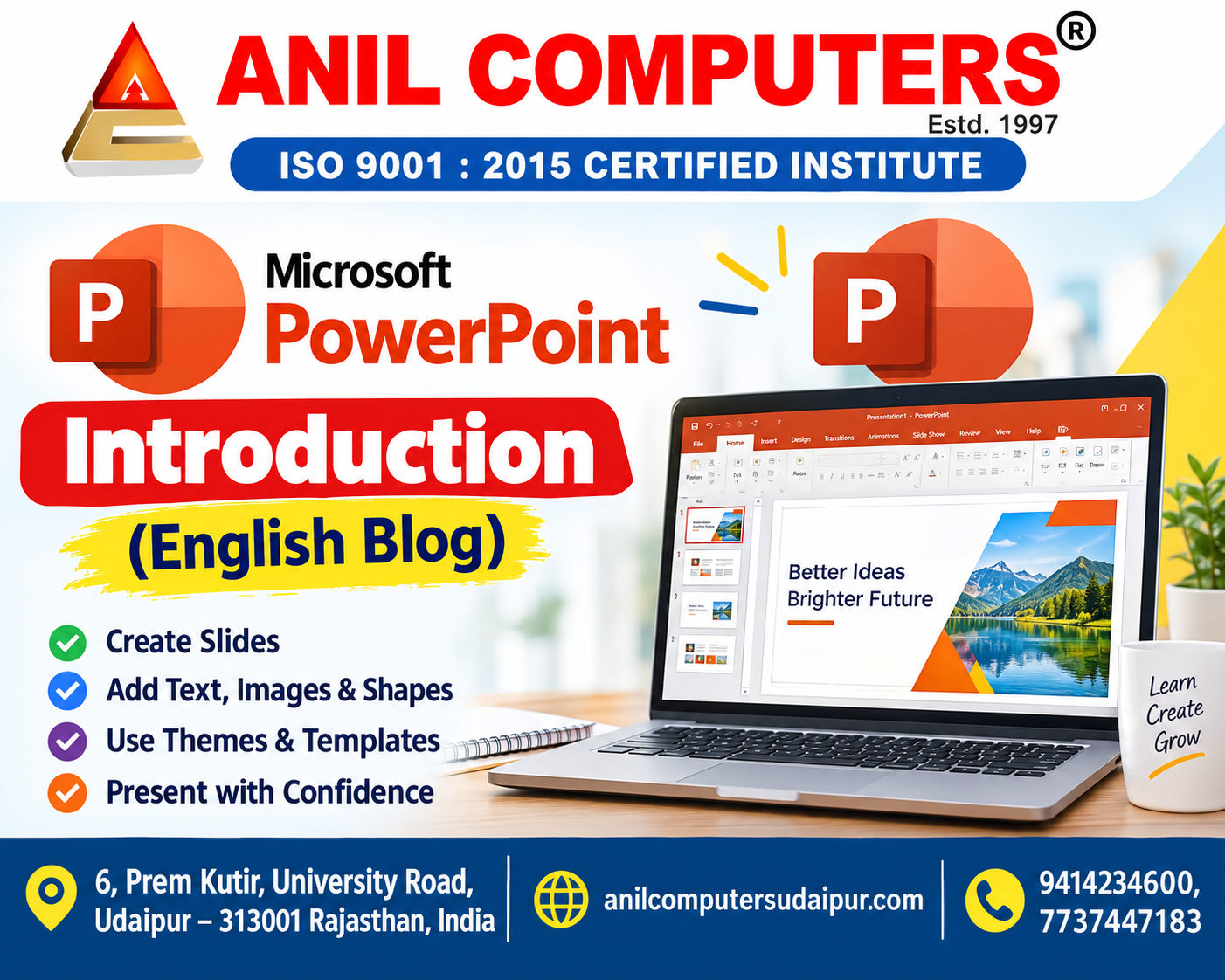
M.S. Power Point
Microsoft power point is usually called only power point .
Microsoft PowerPoint is one of the most popular tools for creating presentations. It is often called simply PowerPoint. A presentation is a type of interaction between the speaker and the audience.
The PowerPoint file is known as a Presentation, and each page inside the file is called a Slide.
In this blog, we will cover:
Useful PowerPoint Shortcuts
How to Create a New Presentation
Insert Slides with Different Layouts
Apply Themes and Design Options
Create and Edit Photo Albums
Shortcut Commands of MS Power Point
Keyboard shortcuts help save time and make working in PowerPoint faster and easier. Some of the most useful shortcuts are:
Ctrl + N → Create a New File/Presentation
Ctrl + M → Insert New Slide
Ctrl + D → Duplicate Objects
Ctrl + Shift + D → Duplicate Slide
F5 → Start Slide Show (from the beginning)
Shift + F5 → Start Slide Show (from current slide)
Ctrl + W → Close File/Presentation
Esc → Quit Slide Show
By practicing these shortcuts regularly, you can work much more efficiently.
New presentation
To create a new presentation:
Go to File → New.
You will get three options:
Blank Presentation → Start with a completely blank slide.
Sample Templates → Use ready-made templates.
Themes → Create → Start with a theme-based presentation.
Beginners should start with a Blank Presentation for practice.
Go to Home Tab → New Slide.
PowerPoint provides multiple Slide Layouts, such as:
Title Slide
Title & Content
Two Content
Picture with Caption
Blank Slide, etc.
Choose the layout depending on the type of content you want to present.
Themes give your presentation a professional and attractive look.
Go to Design → Themes → Select Desired Theme.
Additional options available:
Background Styles → Add different background designs.
Hide Background Graphics → Hide theme graphics.
Slide Orientation → Display slides in Portrait (Vertical) or Landscape (Horizontal).
Page Setup → Change slide size.
A well-chosen theme makes your presentation more audience-friendly.
The Photo Album feature is very useful for displaying multiple images in a slideshow format. It is perfect for personal, business, or educational purposes.
Go to Insert → Photo Album → New Photo Album
Select File/Disk → Choose Photos → Insert → Create
Go to Insert → Photo Album → Edit Photo Album
Make necessary changes → Update
This feature allows you to instantly convert multiple images into a professional slideshow.
MS PowerPoint is a powerful presentation tool that is useful for students, teachers, professionals, and businesspeople. With it, you can:
Power Point Introduction in Hindi Blog Link
PowerPoint Introduction English Blog
Thanks To Google
Thanks To ChatGPT
AI Content Writing & Research Tools
OpenAI ChatGPT – AI Content Writing & Ideas
Google Google Gemini – Smart Research Assistant
Design & Graphics Tools
Canva – Graphics & Design Creation
Adobe Adobe Firefly – AI Image & Design Generation
Remove.bg – Background Remover for Images
Video Creation & Editing Tools
Google Google Flow – AI Video Creation Tool
InVideo – AI Video Maker & Reels Creator
Pictory – Blog to Video Conversion
Synthesia – AI Avatar Video Creation
Runway ML – AI Video Editing & Effects
CapCut – Short Video Editing
Voice & Audio Tools
ElevenLabs – AI Voiceover Generator
Descript – Audio/Video Editing with AI
SEO & Marketing Tools
Ubersuggest – SEO & Keyword Research Tool
https://neilpatel.com/ubersuggest
Productivity & Document Tools
Microsoft Microsoft Copilot – Documents & Office Productivity AI
iLovePDF – PDF Edit, Convert & Merge Tool
Popular AI Platforms for Learning
Midjourney
DALL·E
Leonardo AI
✨ AI tools के साथ सीखें, तेज़ी से बढ़ें और अपने काम को प्रोफेशनल बनाएं।
— Team Anil Computers